Brand Board Colors in Forms & Surveys
Instead of manually entering and reusing color codes, you can now access your Brand Board colors directly from the Builder color picker. Helping you keep styles more consistent across assets and easily update custom colors. Let's check the changes!
⭐️How Will These Changes Affect You?:
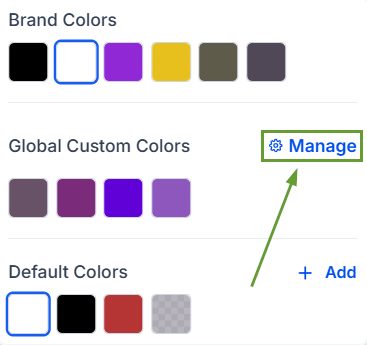
Section Separation: The color picker now includes separate sections for Brand Colors, Default Colors, and Global Custom Colors.
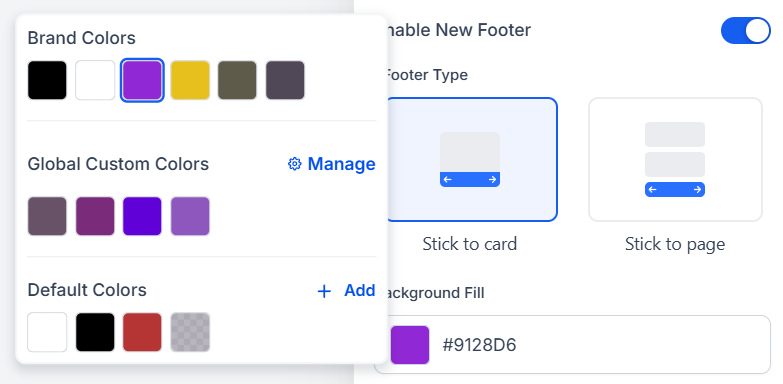
Saved Brand Colors: You can use saved brand colors directly while styling elements like buttons, and when you select a saved color, the Builder automatically shows the preview.
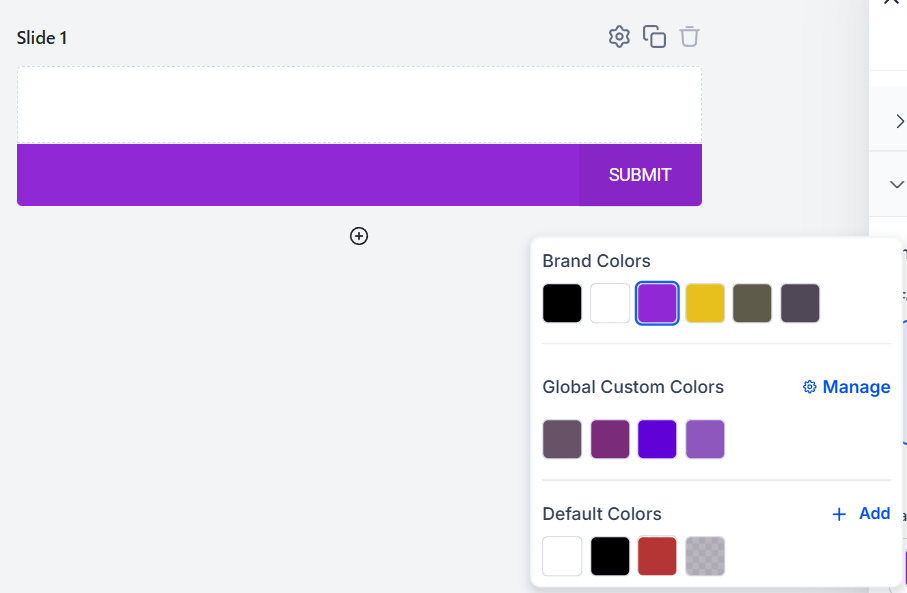
Direct Management: When managing colors in the builder, click the Manage option to add a Global Custom Color that can be accessed across projects.
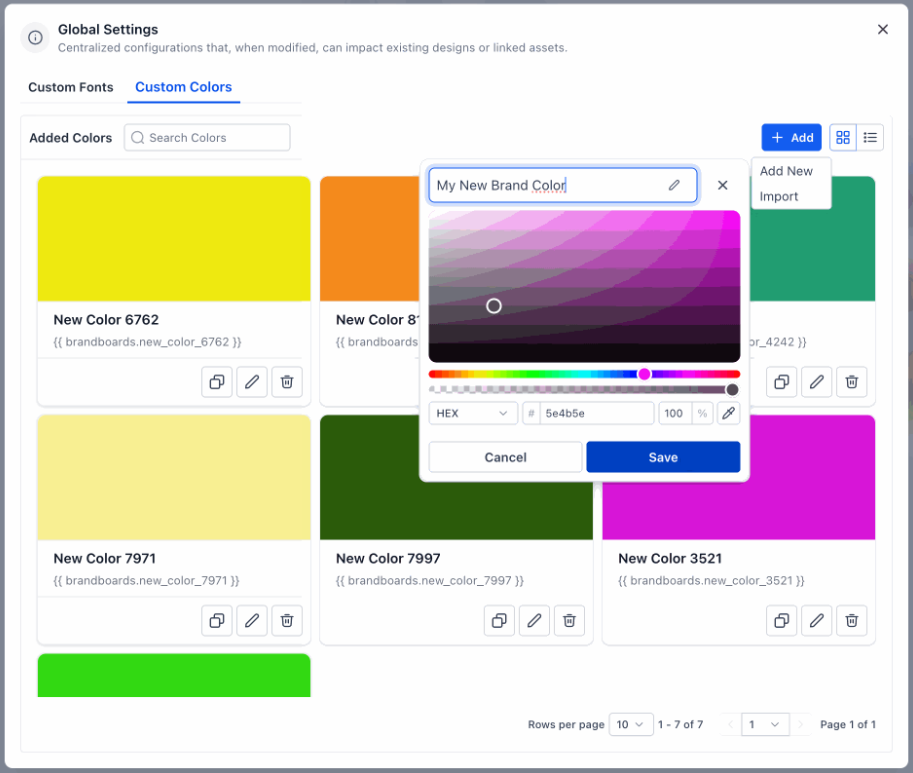
⭐️How To Save And Apply Colors?
Let's learn how to add a new color to the Global Custom Colors directly from the builder!
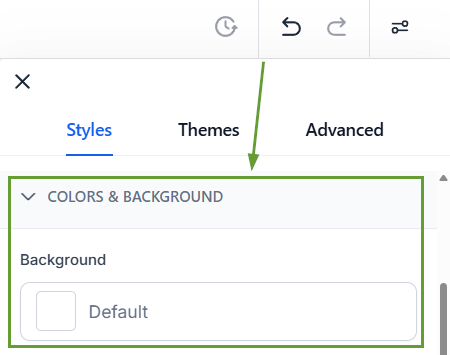
To start, open the Form or Survey builder and open the Color settings.
Click Manage to open the Global Custom Colors.
Click Add New, then pick and save your new color.
Close the pop-up window and apply your newly saved color to your build.
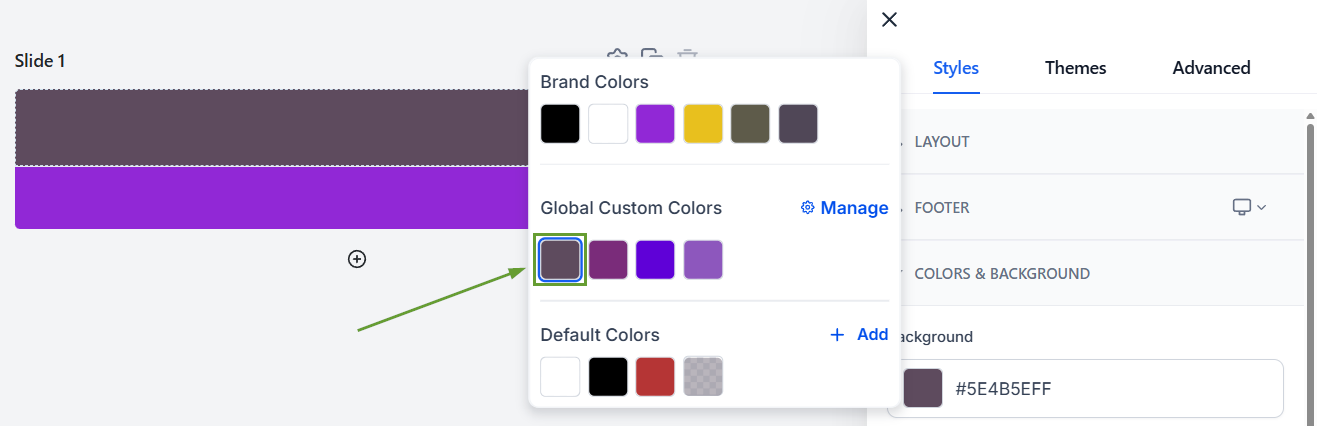
Thanks to this update, your team can quickly save and apply new colors to your builder. Making it easy to avoid issues with manually copying hex codes or having to switch between tabs for consistent creations. We hope you enjoy it!
