Community Comment Management in Social Planner
Responding to your Community members frequently and quickly goes a long way in keeping their interest high. Now, you can manage these responses without switching tabs, helping you no longer miss conversations. Let’s learn how to respond to comments from your CRM!
⭐️ How To Respond To Community Comments From The Social Planner?
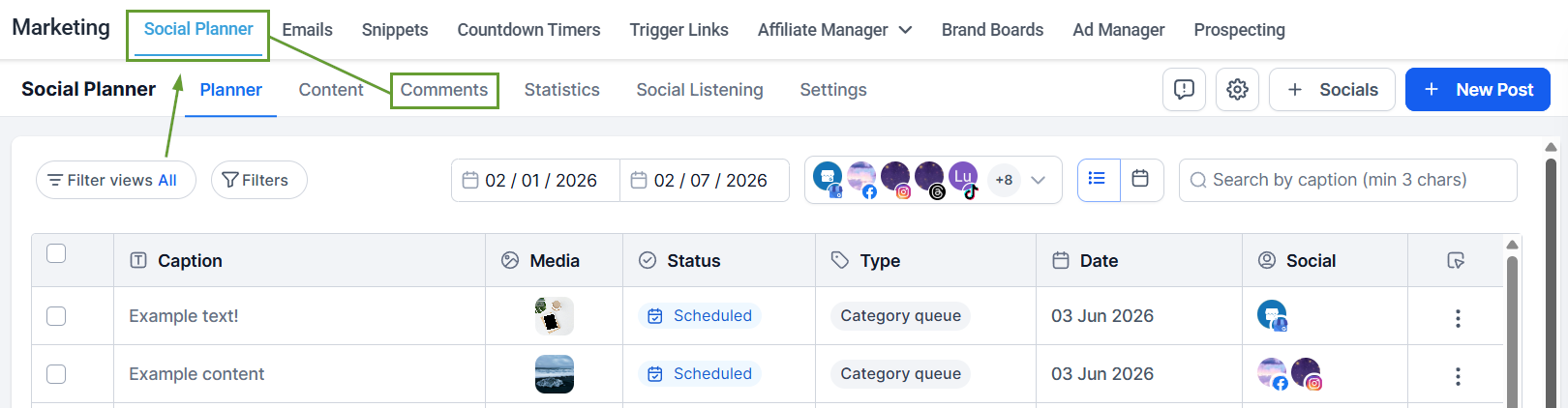
Navigate to the Comments area inside the Social Planner tab of your Marketing section.
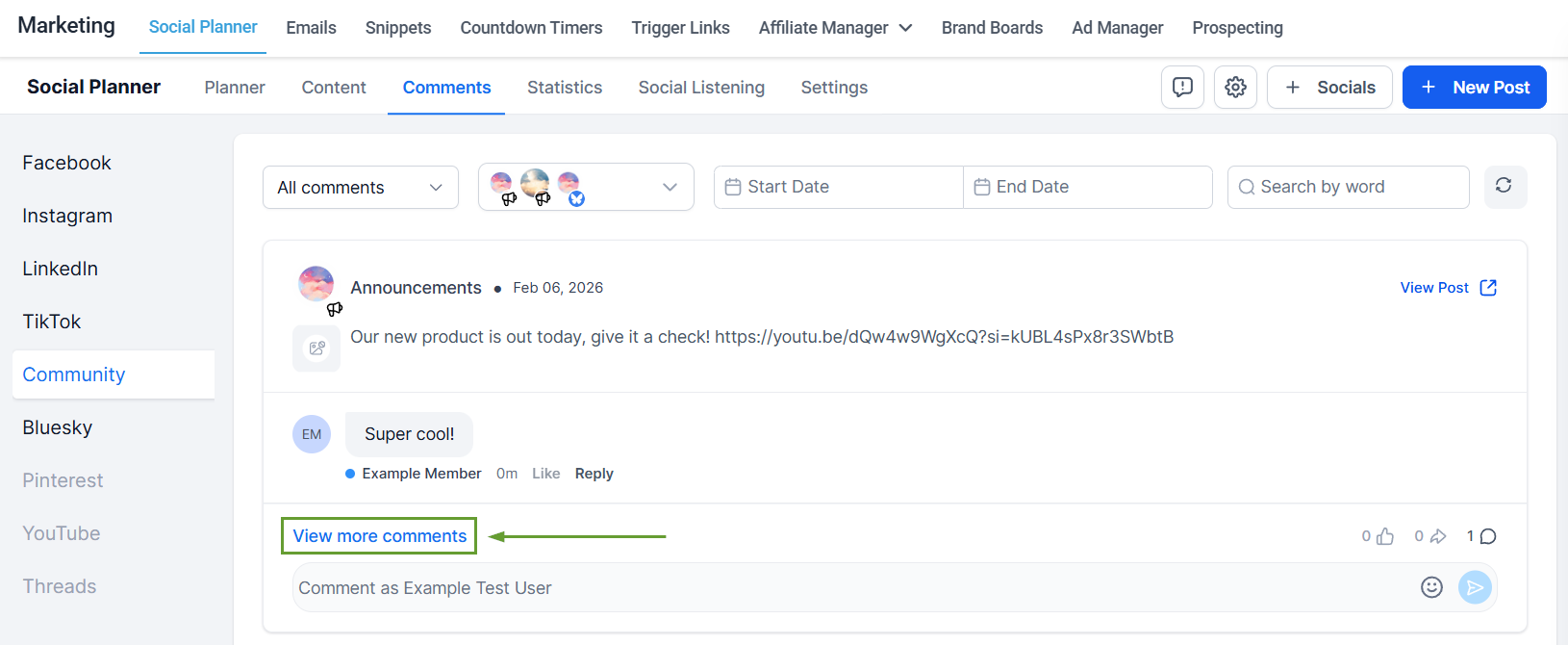
To respond to a comment, click View More Comments to open the detailed view.
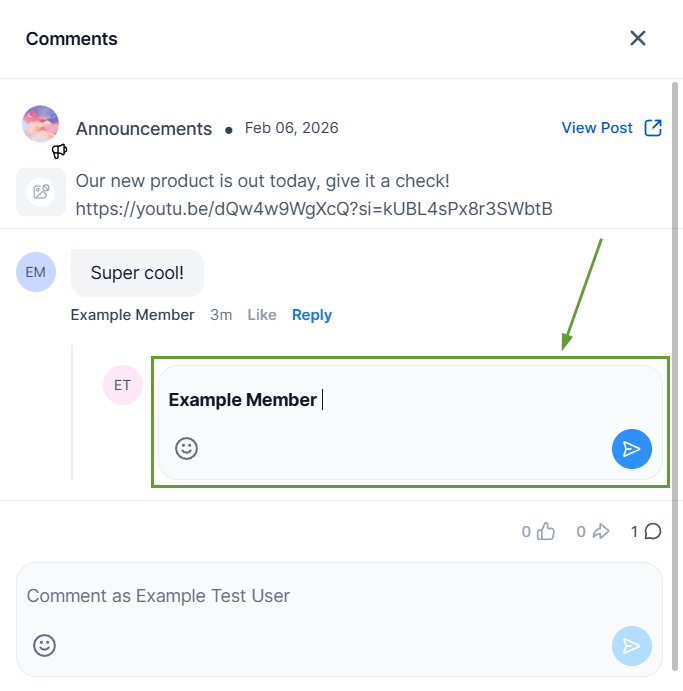
Click Reply under the comment you want to respond to.
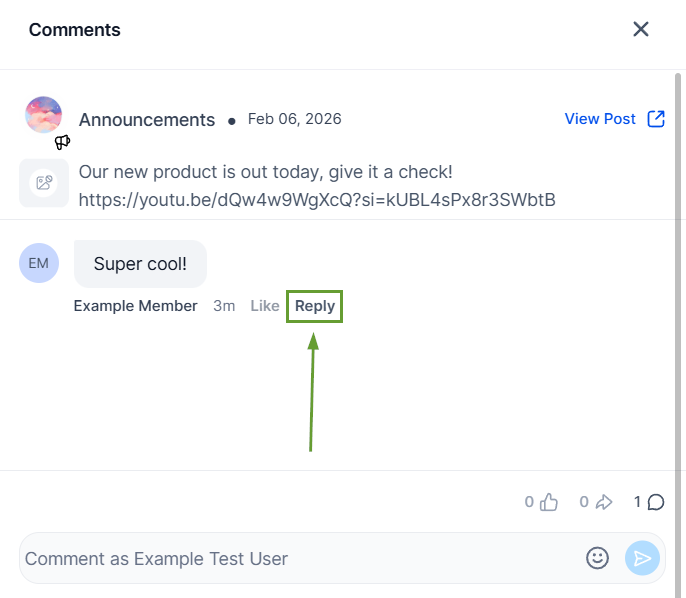
Type in your response in the text bubble under the comment.
⭐️Why Is This Feature Beneficial To Your Company?
Increased Interactions:Timely responses keep conversations alive, creating a more lively community group that entices members.
Simplified Moderation: This helps you quickly address comments, reducing harm should any negative interaction occur, and gaining insights into your members' needs and concerns.
Improved Rapport: Replying to comments shows that the team is listening and engaging, which builds a stronger connection with your audience.
You can now respond to community post comments directly inside Social Planner, making it easier to manage conversations without navigating to the native community platform. We hope you enjoy it!
