Comparative View & Custom Date Range in Social Planner Statistics
Previously, Social Planner Statistics would give you a fixed 7-day view, which was limiting and led to poor growth analysis. So, we’ve replaced it with a custom date range and comparative view selector. Let’s learn how to use it!
⭐️How To Modify The Date Range In Social Planner Statistics?
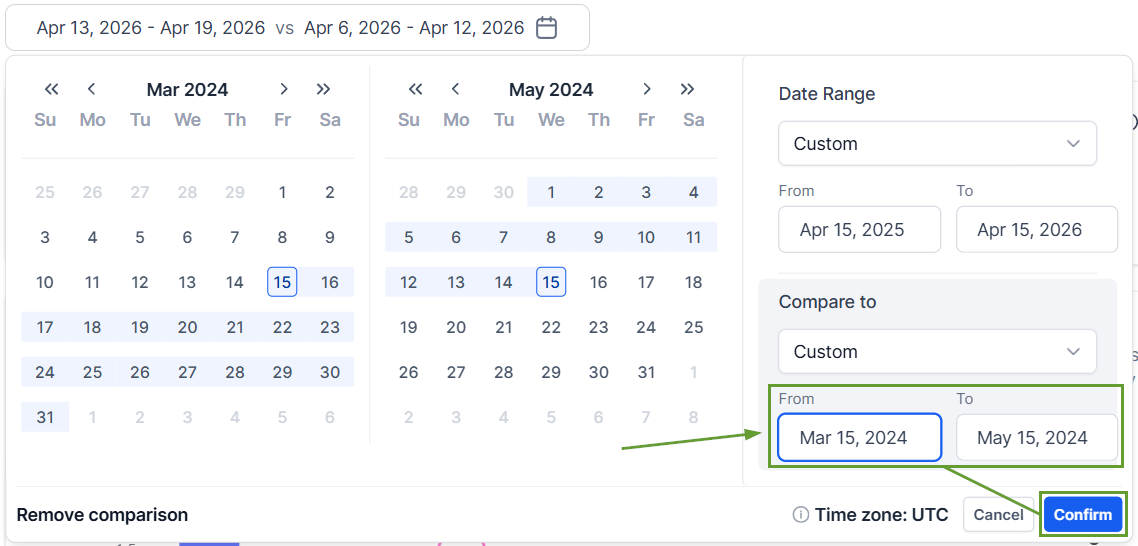
Head to the Statistics view inside the Social Planner and click the date selector.
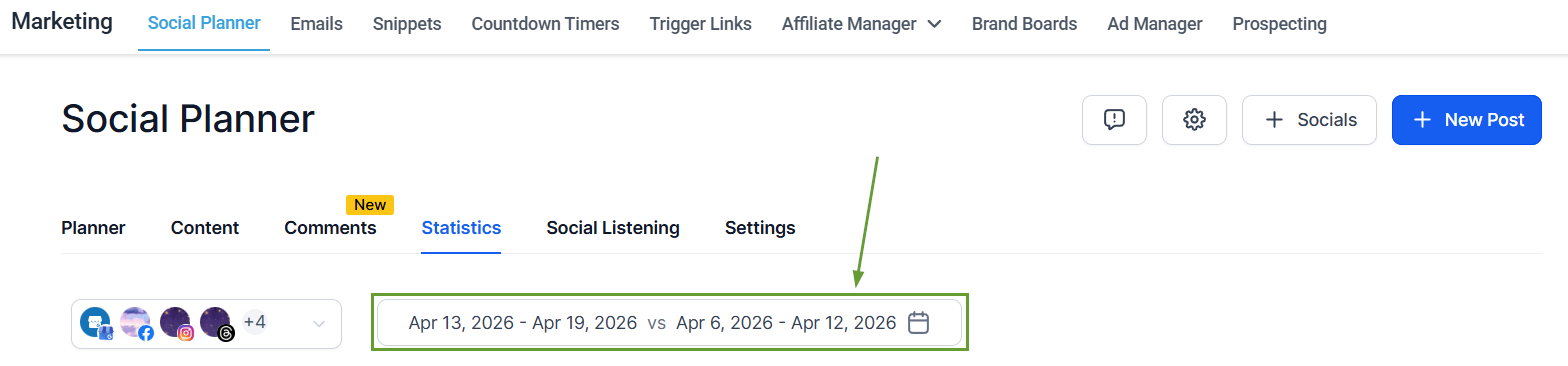
Set your desired date range.
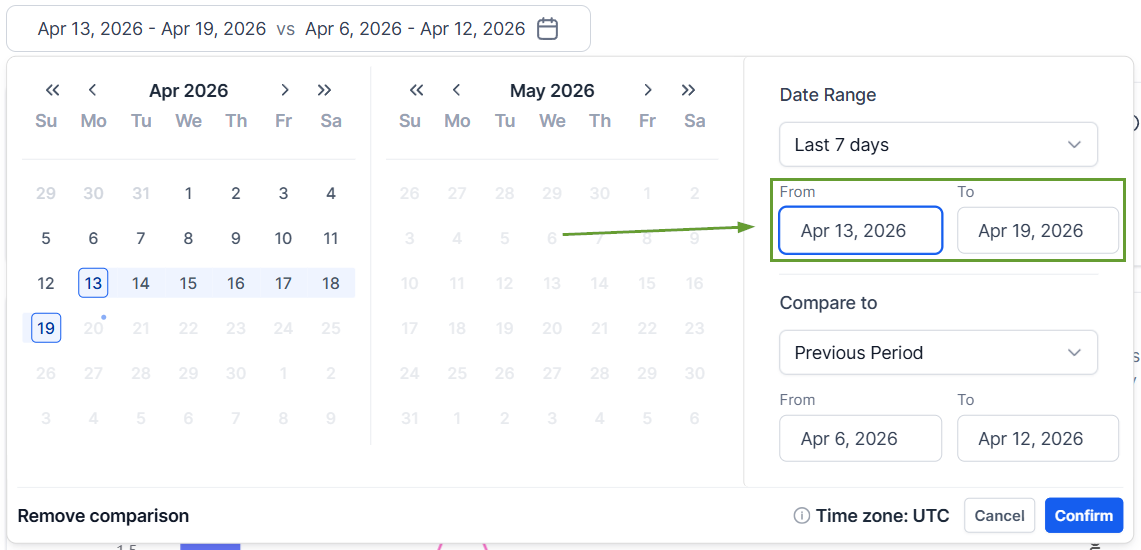
Select the comparison date range.
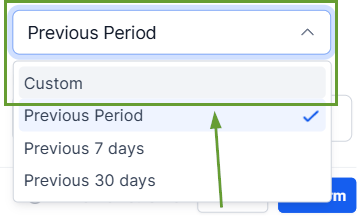
If using custom, set the date range, then click confirm.
⭐️Why Is This Feature Beneficial To Your Company?
Immediate Visualization: KPIs, totals, and charts update instantly based on the selected range, helping you analyze performance across exact campaign windows.
Simplified Analysis: Compare the selected date range with the previous equivalent window using the quick selection options, making it easier than ever to view growth trends.
Accurate Reporting: Generate clearer insights and client-ready reports that target your important windows reliably without depending on external tools.
This replacement enables more flexible, self-serve insights for campaigns, trends, and growth analysis. This will help you effectively communicate the strong points and necessary improvements for a great social media presence. We hope you enjoy it!
