Media Storage Accessible Via Workflows
Previously, you had to re-upload files or paste media links by hand to repeat attachments across workflow actions. With this update, you can now choose an asset from your media library or upload a new file, and maintain it across duplicate actions and workflows. Let's learn how to use this feature!
⭐️How To Access Your Media Storage In Workflows?
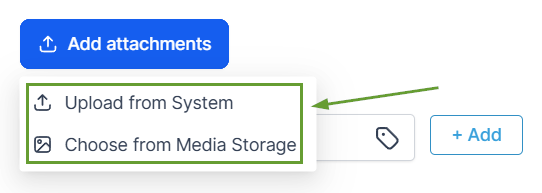
Open a media-supported workflow action and click Add Attachment.
Choose Upload a file or Choose from Media Storage.
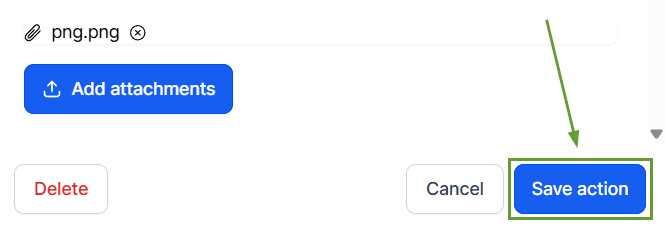
Select your file and save the action once validation passes.
⭐️How Will This Change Work?
Validation Behavior: File type and size validation applies based on the action, with the metrics remaining unchanged, and unsupported or oversized files will show an inline error.
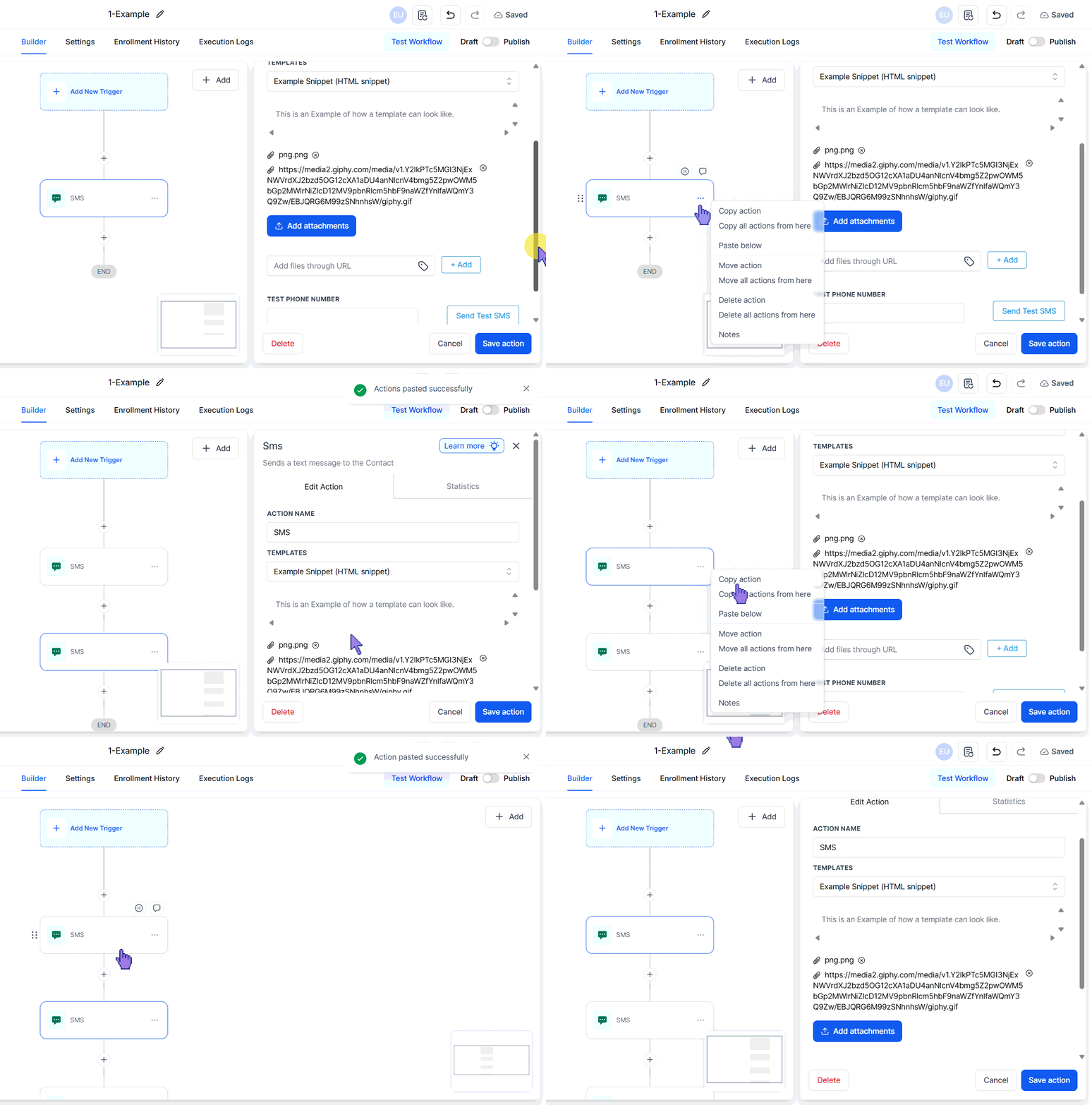
Duplicated Actions: If an action is copied, its attached media will carry over.
Existing Workflows: Builds with previously uploaded media will continue to work as expected.
This removes the extra work of repeatedly uploading the same file or copying and pasting media URLs into each workflow action. We hope this makes your work easy and smooth. Enjoy it!
