Redeeming Gift Cards in Appointments
Previously, you could redeem Gift Cards only through customer-facing checkout flows. With this update, you can apply a customer’s available Gift Card balance when collecting a payment on their behalf, including when charging a saved card or adding a new card. Let’s learn how!
⭐️ How To Redeem A Gift Card For An Appointment?
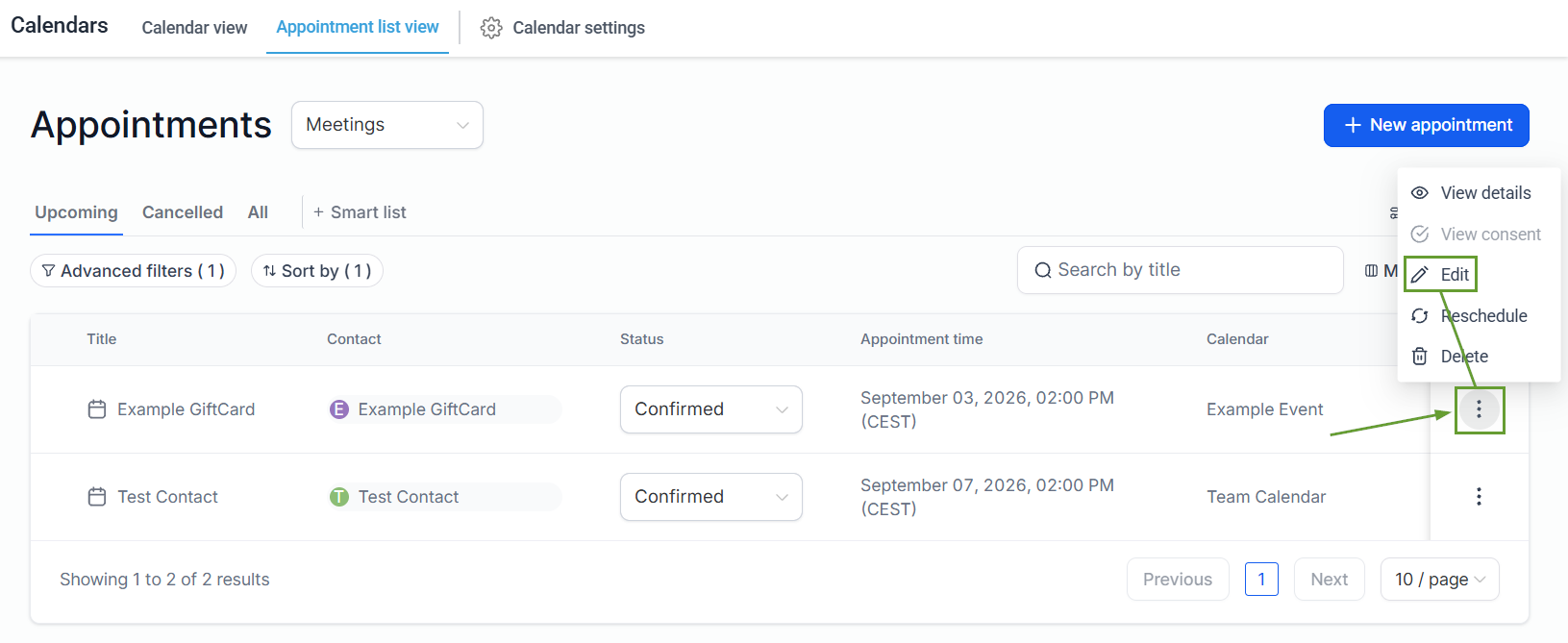
In the Calendars section, head to the Appointments tab and edit the appointment you’ll be collecting payment for.
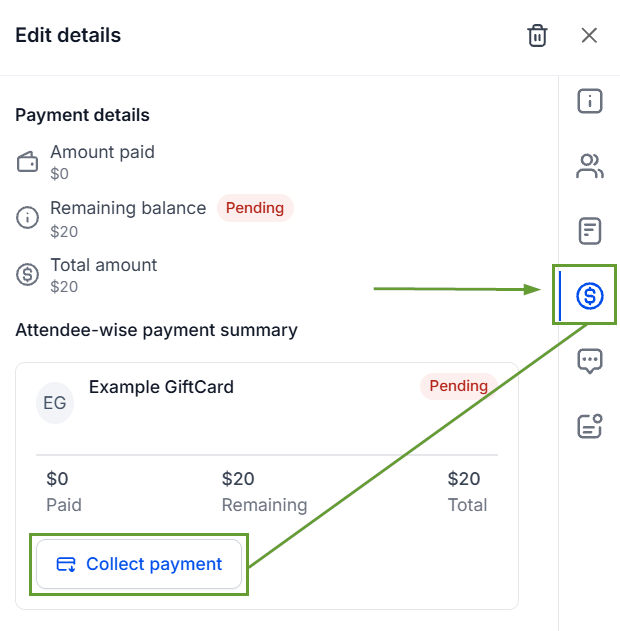
Switch to the Payments tab and click Collect payment.
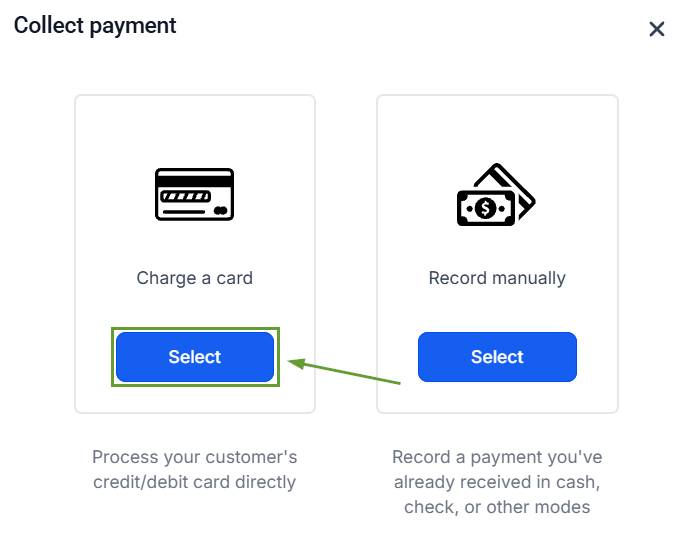
Select “Charge a Card” as the payment method.
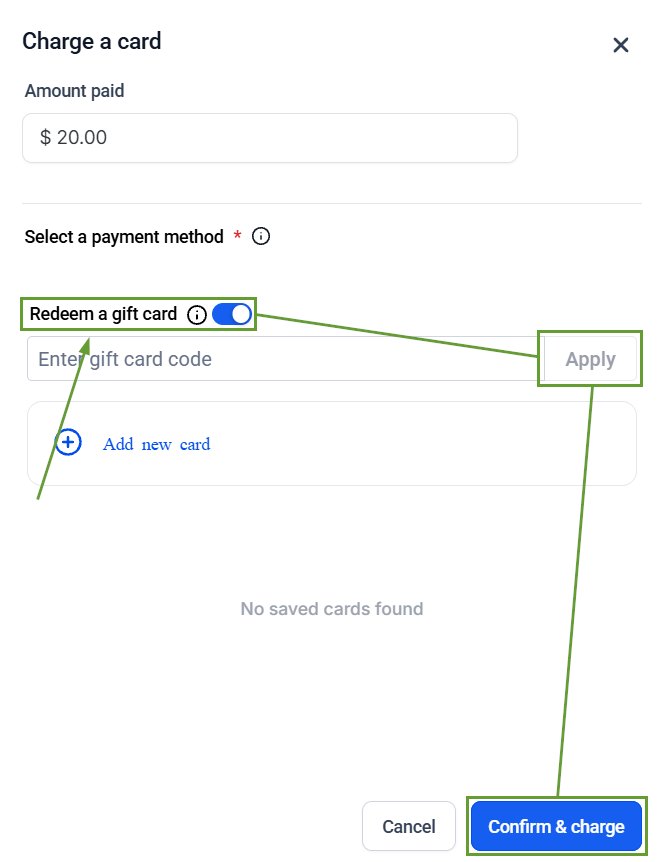
Toggle Redeem Gift Card on, then enter the gift card code, click Apply, and Confirm & Charge.
⭐️Why Is This Feature Beneficial To Your Company?
Simplified Checkout Experience: Speed up the appointment billing by removing work from your customers and charging their gift cards directly.
Consistent Redemption: Gift Cards now behave the same way whether the customer or the business initiates the payment, with support for partial payment and clear validation messages.
Better Payment Visibility: Transaction Details clearly show the amount redeemed using the Gift Card, show additional payment methods, and update the associated Gift Card balance.
This brings Gift Card redemption to offline Calendar payment flows, creating a consistent redemption experience regardless of who initiates the payment. We hope you enjoy it!
