Wait Action Revamp
We’ve completely redesigned the Wait action with a new intent-based UI, condensed options, recurring schedules, and an AI-powered setup to make your workflow configuration easier. Let's check the changes!
⭐️How Do These Changes Affect You?:
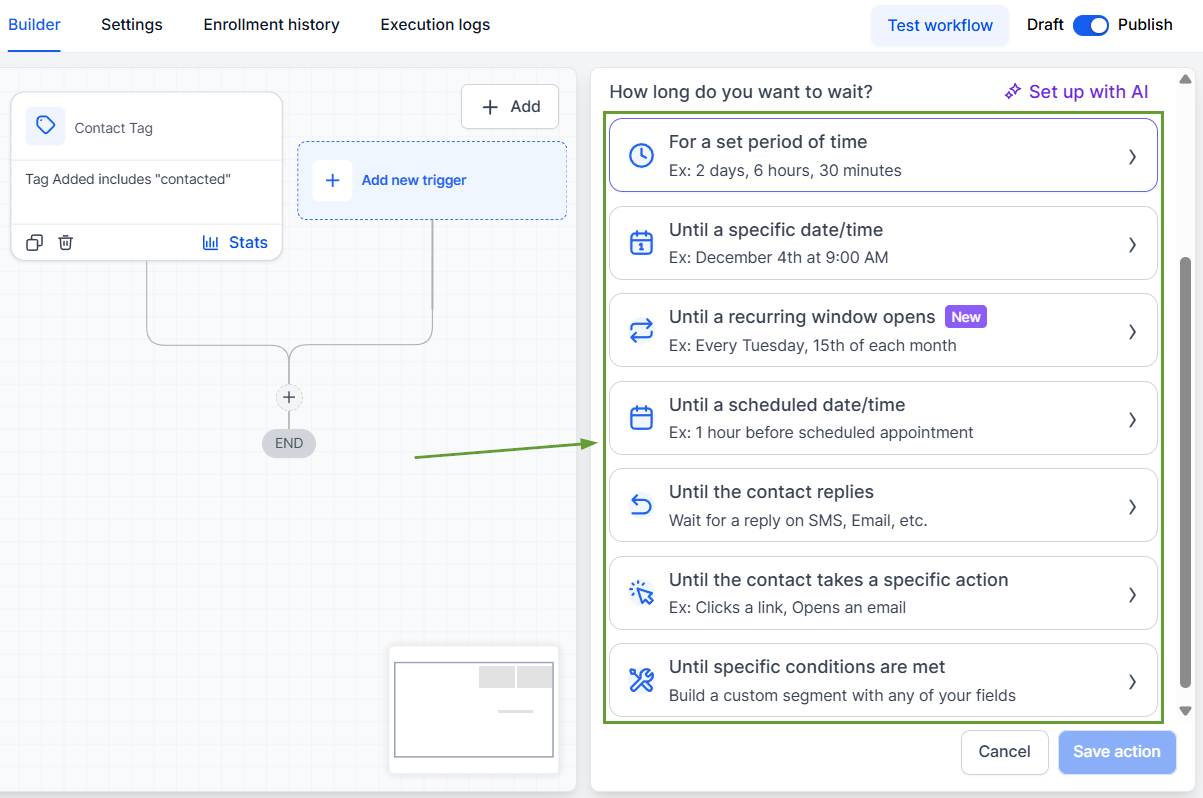
Intent-Based Card Selection: The type selector now presents what the contact should wait for, no more hunting through nested dropdowns to find options like "Wait for a contact reply."
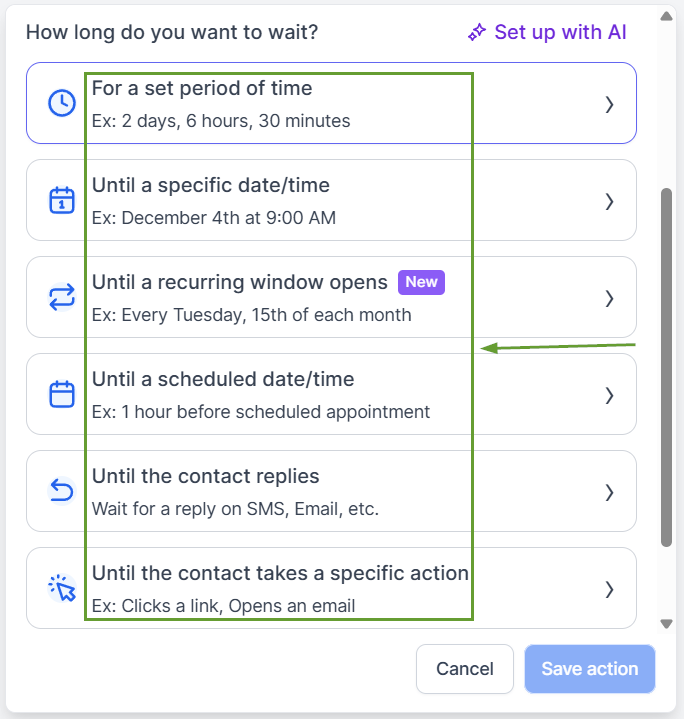
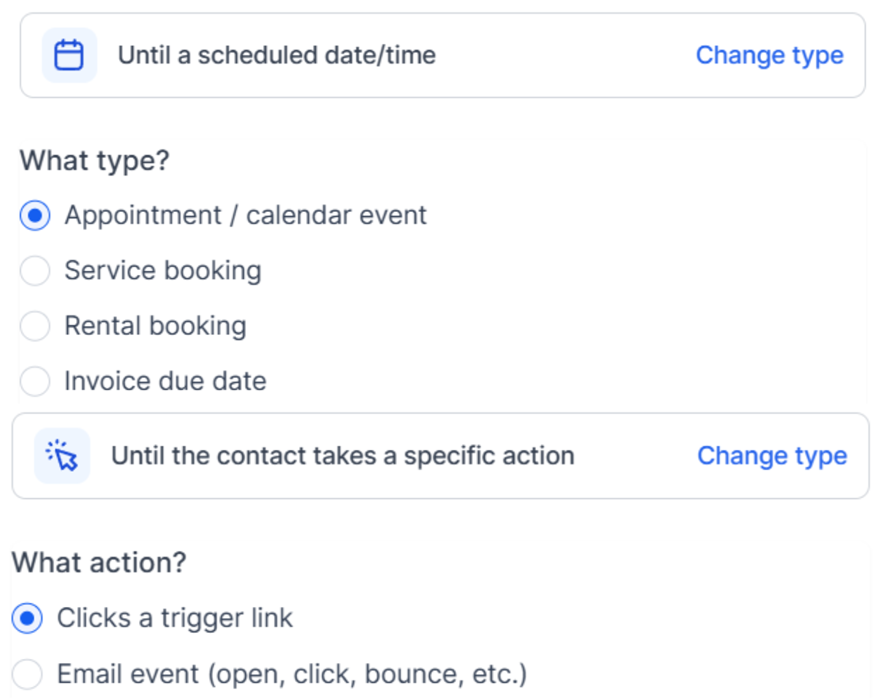
Grouped Wait Types: Related wait types are now grouped under single cards to reduce clutter, batching contact actions together, and all booking types as one.
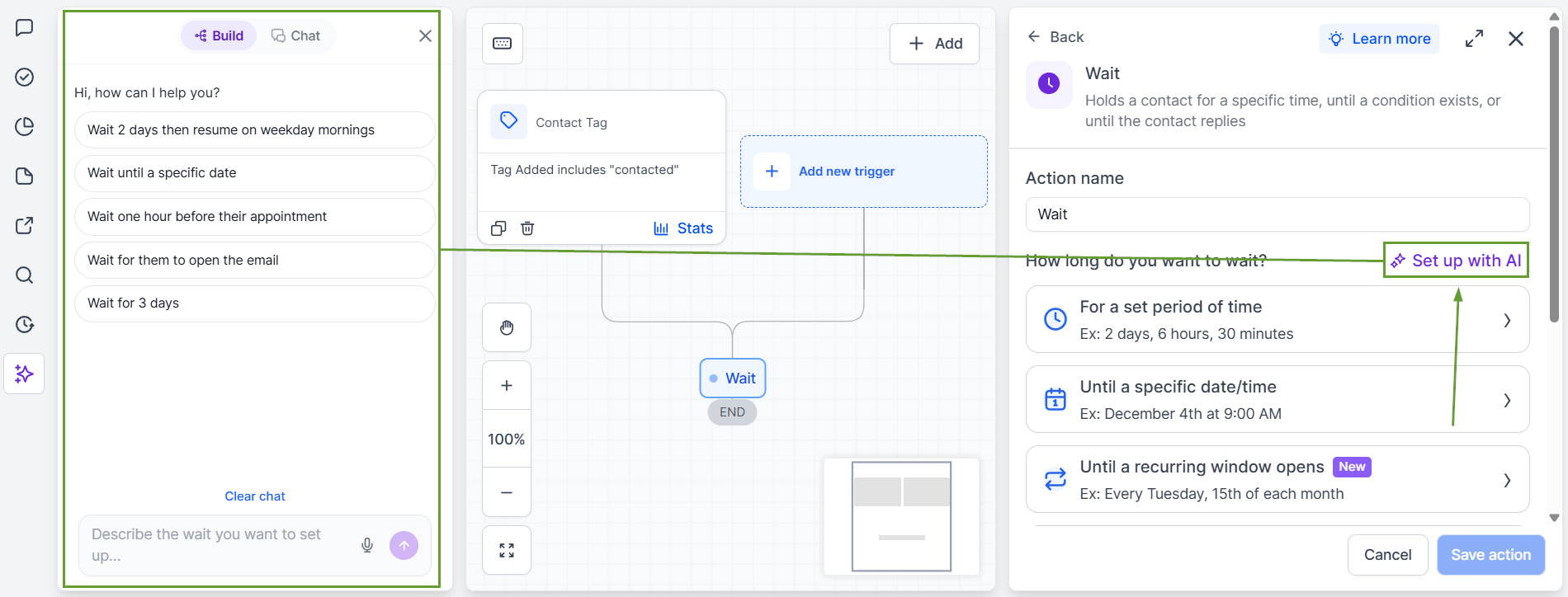
Setting Up With AI:A CTA at the top of the Wait action lets you define your desired wait behavior so the AI Builder agent generates a configured Wait action card.
⭐️How To Use The Wait Action?
Let’s go over how to add and configure the Wait Action with these improvements!
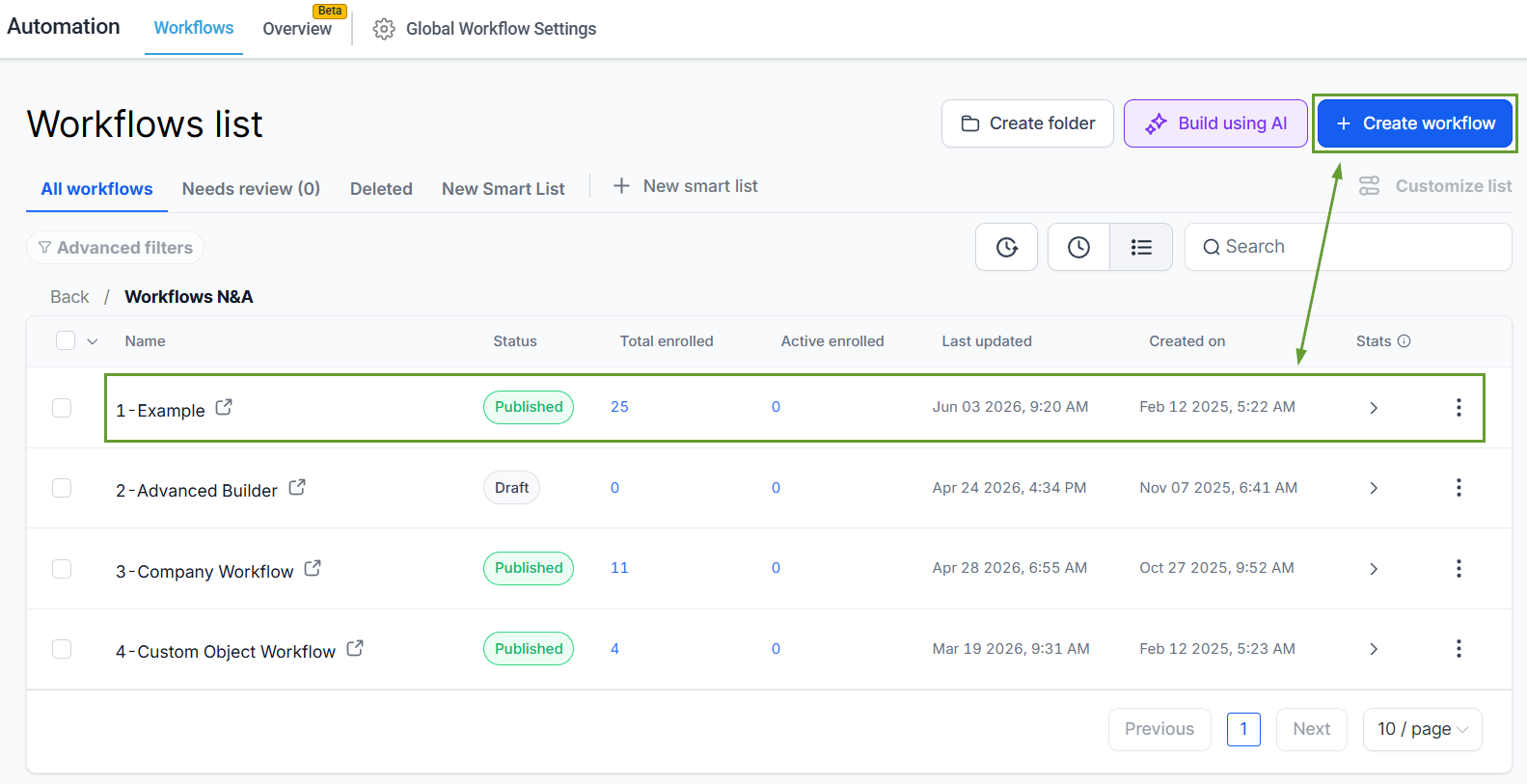
Head to the Workflows tab inside the Automation section and edit or create a new workflow.
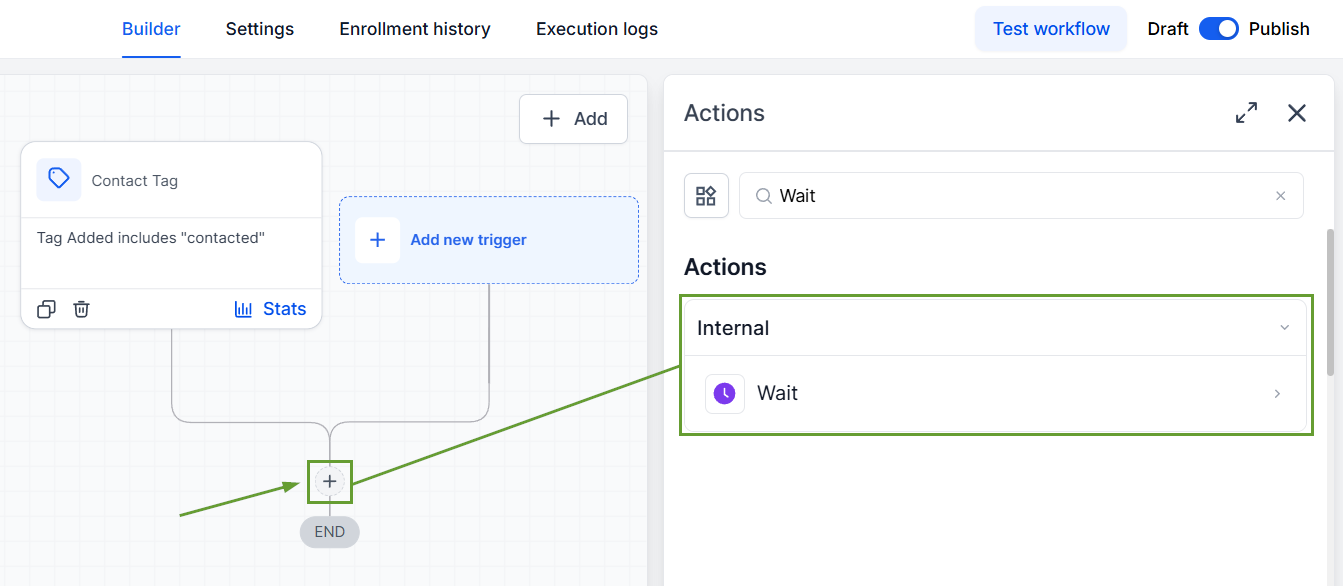
Add the Wait action where you see fit.
Select your desired intent or use a setup with AI to be recommended an option.
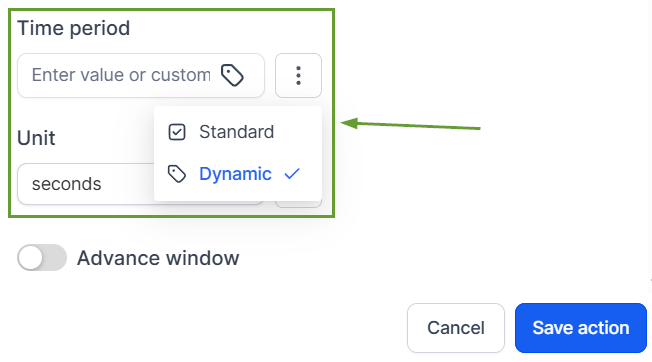
Configure your waiting as desired. You can do so with standard or dynamic values, as well as specific days and times down to the second.
The new single-step date setup and intent-based card layout with contextual reordering eliminates confusion, helping you approach your workflow building straightforwardly and supporting you with AI whenever needed. We hope you enjoy it!
