Client Portal File Uploaded Trigger

Client Portal File Uploaded Trigger

July 16, 20261 min read

The Client Portal Shared Documents experience allows you to manage files more efficiently, keeping them organized and connected. Now you can trigger workflows when a contact uploads a file through this experience for improved management. Let’s learn how to use it!

⭐️ How To Use The Client Portal File Uploaded Trigger?

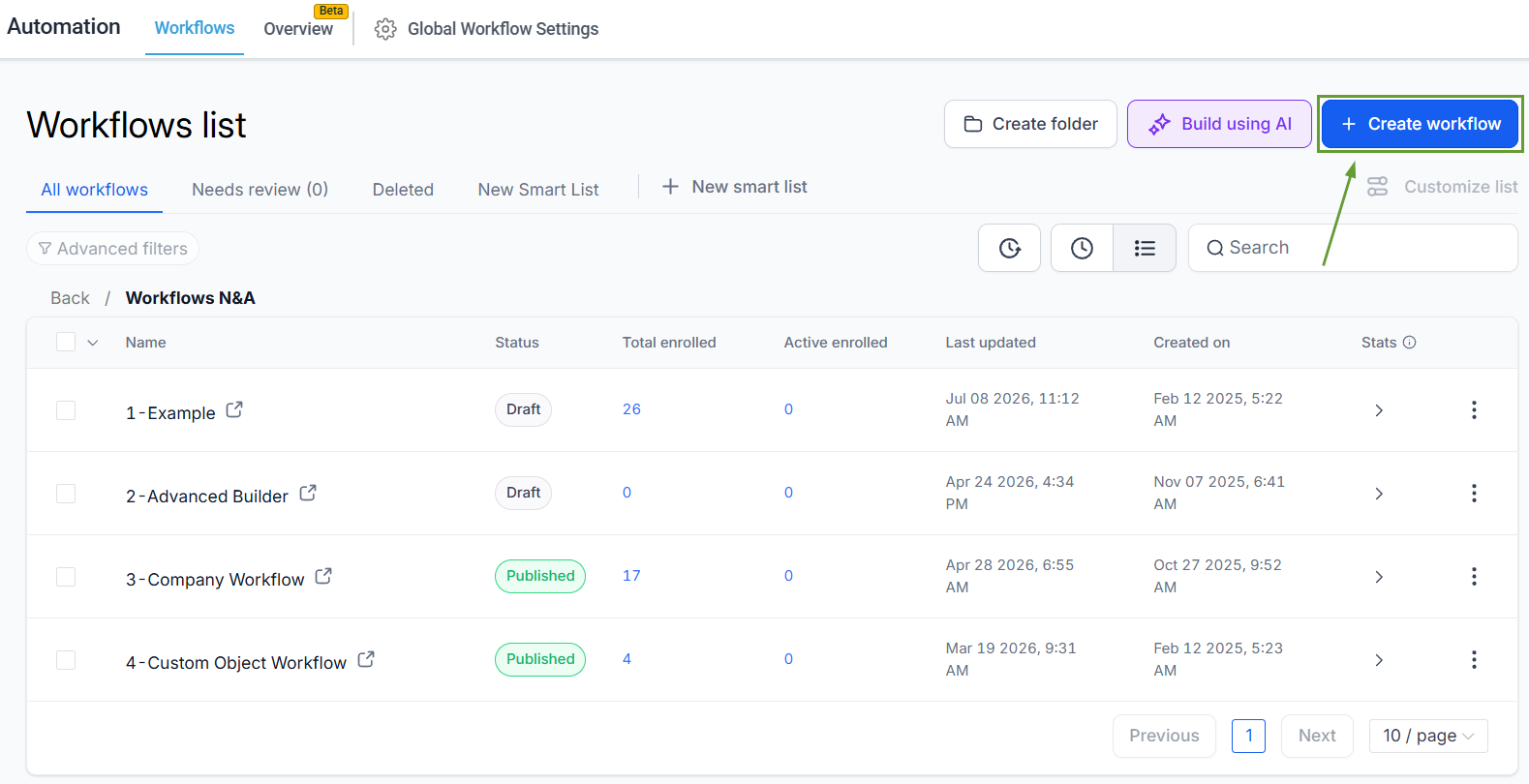
  1. Navigate to the Workflows tab inside the Automation section and create a new workflow.
    1
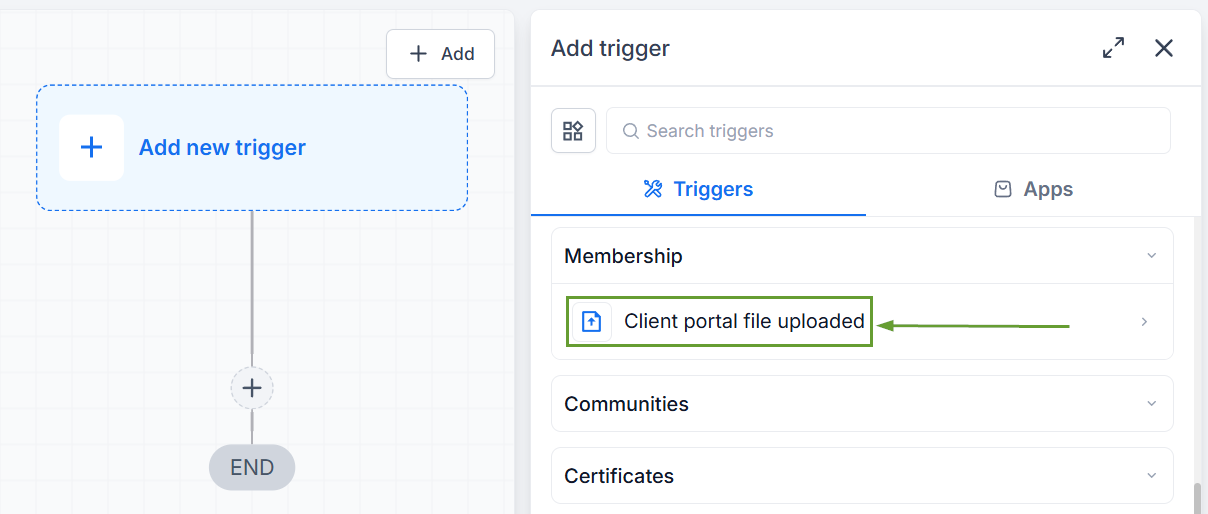
  2. Add the trigger Client Portal File Uploaded.
    2
  3. Configure the workflow actions as relevant and publish the workflow.
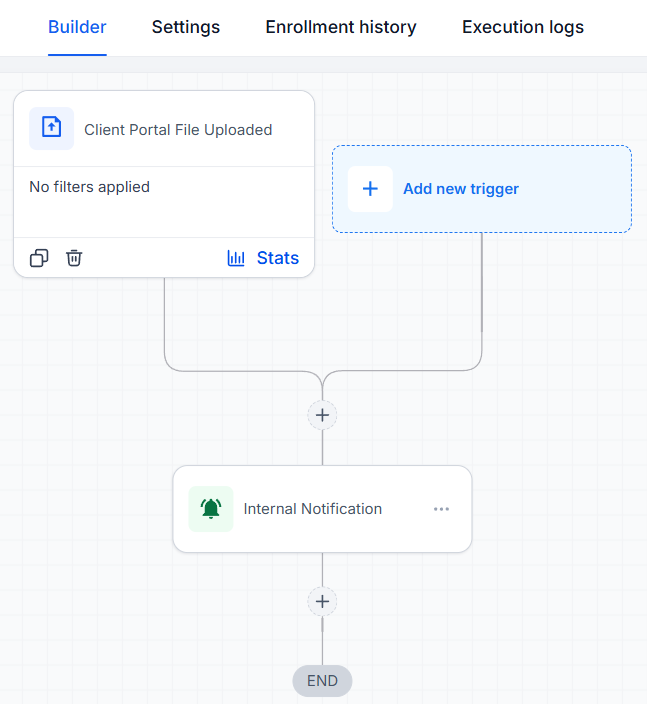
    3

⭐️ How To Upload A File As A Client Portal User?

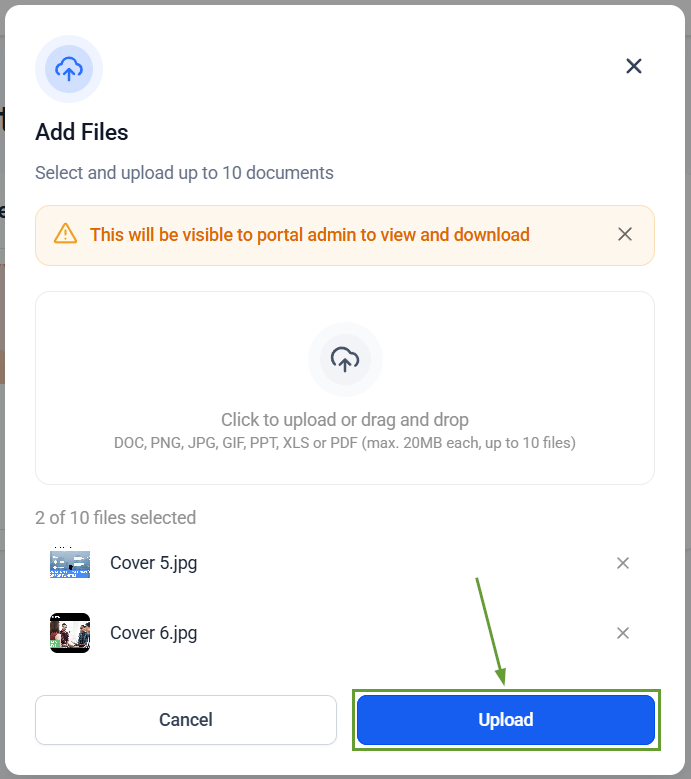
  1. Navigate to the Shared Documents section and click + Add Files.
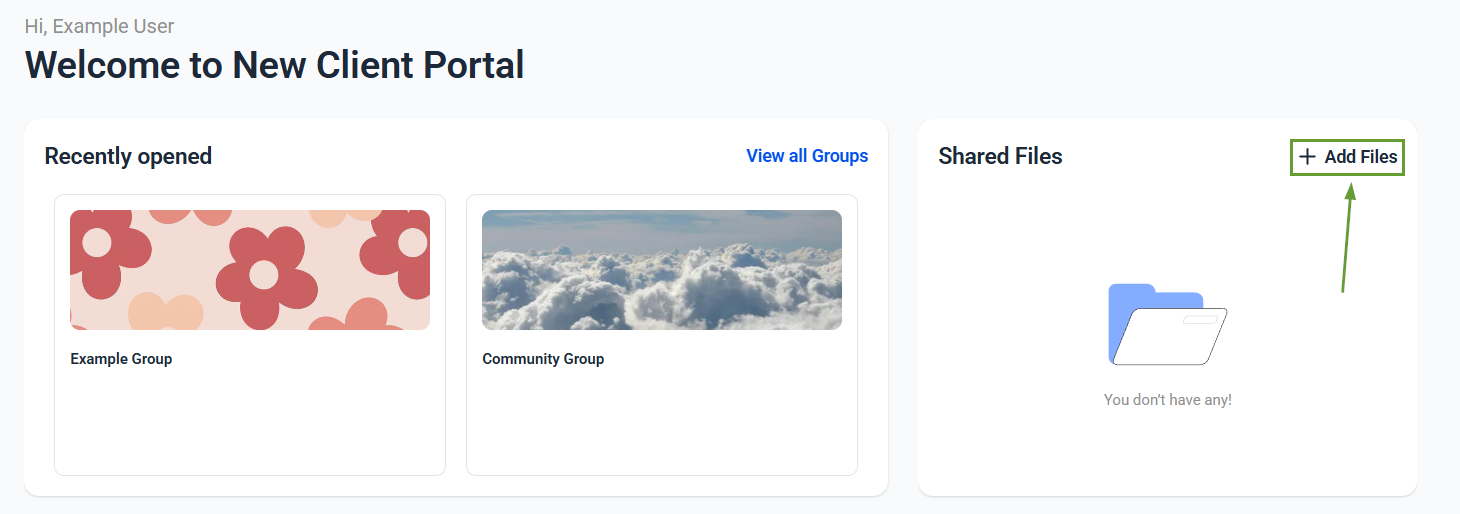
    4
  2. Upload a single file or multiple files.
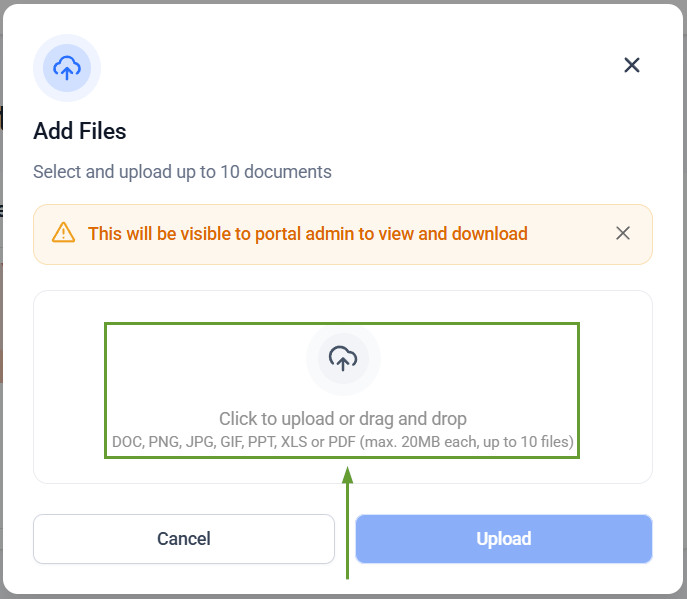
    5
  3. Click Upload to submit the files.

    6

This feature closes that automation gap by enabling you to notify team members and start onboarding and approval processes. Helping you ensure no important uploads are missed. We hope you enjoy it!

Raichel.ai

Raichel.ai

Raichel.ai, founded by Angela Bryant, empowers entrepreneurs with intelligent automation and customer relationship management (CRM) tools designed to elevate engagement and streamline business operations. At the heart of our platform is Raichel, our 24/7 AI Agent, who answers calls, handles FAQs, books appointments, and nurtures client relationships — all in real time. Our all-in-one system also features automated marketing campaigns, a unified communications hub, and smart scheduling, giving businesses the power to grow efficiently with less stress. Guided by our core values — integrity, commitment, value-centric service, and unwavering support — Raichel.ai is more than just software. We’re your partner in building a thriving business, offering the tools and personalized service you need to succeed with confidence.

Back to Blog