Contact Tag Management
Previously, selecting or deselecting a tag would instantly apply the changes and unintentionally trigger workflows. With this update, you have more control and can confidently manage tags without accidental changes. Let's check the improvement!
⭐️How Do These Changes Affect You?:
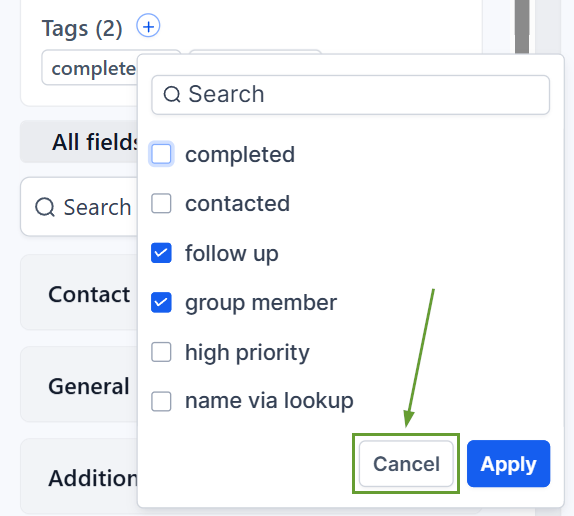
Apply Confirmation: Added an Apply button for tag changes, allowing you to finalize changes before applying them.
Easy Undo: Added a Cancel button to discard unintended changes and prevent accidental workflow triggers caused by unintended tag updates.
Improved Safety: Enhanced overall safety and accuracy while managing contact tags, creating a wider margin for error in all updates.
⭐️How To Manage Contact Tags?
Let’s go over how to add or remove tags after this update!
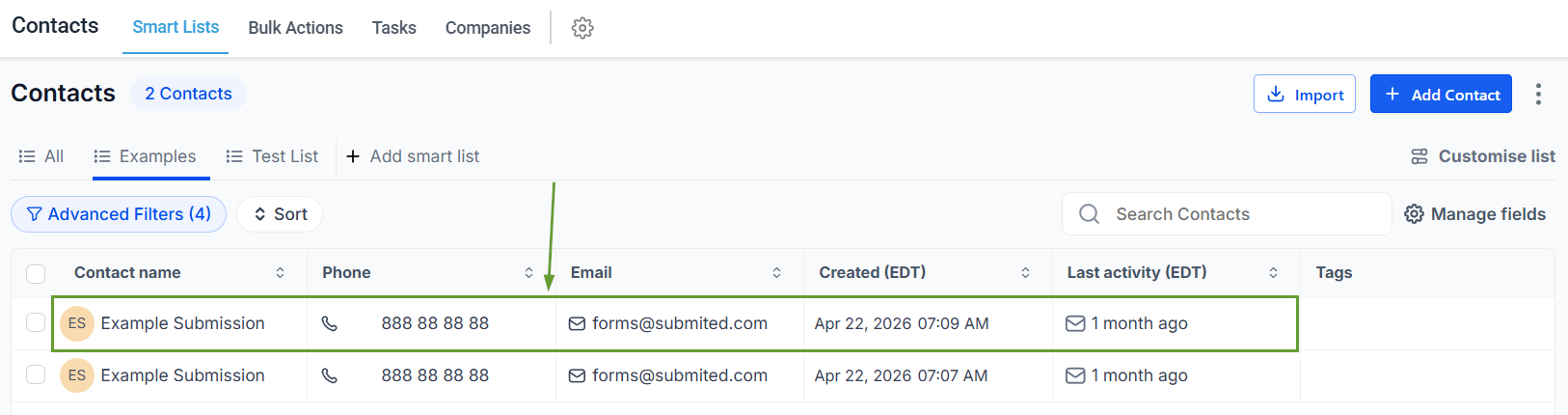
Head to the Contacts tab inside the Contacts section and select your desired contact.
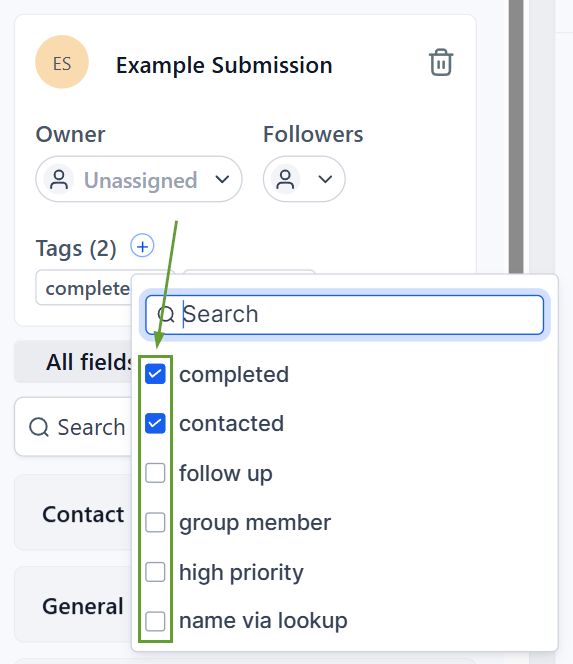
Open the tag dropdown for a contact and select or deselect the desired tag(s).
Click Apply to confirm the addition or removal of the tags.
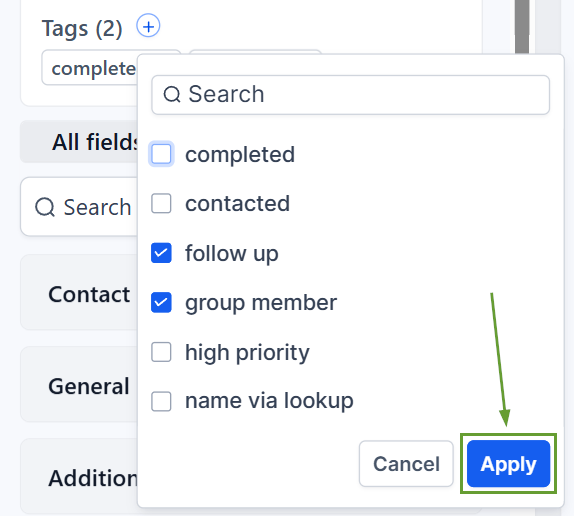
Click Cancel if you do not want to proceed.
This update improves the tag management experience in the Contacts module by introducing confirmation for adding and removing tags, allowing you to modify your contact tags with confidence. We hope you enjoy it!
