
Manage Smart Lists UI
We’ve revamped the Smart Lists layout and icons. This update improves usability, visual consistency, and performance while aligning this page with the rest of the platform. Let's check the changes out!
⭐️How Do These Changes Affect You?:
Improved Usability: The enhanced layout and interactions make it easier to view, organize, and manage your smart lists.
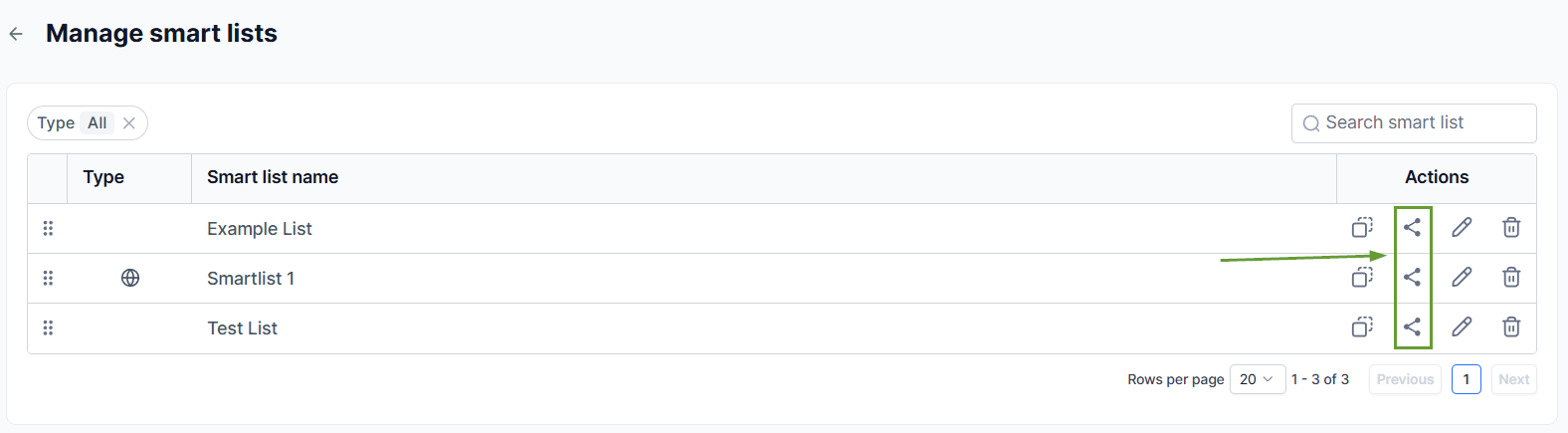
Upgraded Icons: A refreshed share icon improves accessibility and makes the share action consistent across the system.
Design Consistency: This upgrade ensures a unified experience across the entire contacts module, increasing the ease of use.
⭐️How To Share Smart Lists With Other Users?
Let’s go over how to manage access to smart lists across users in the CRM!
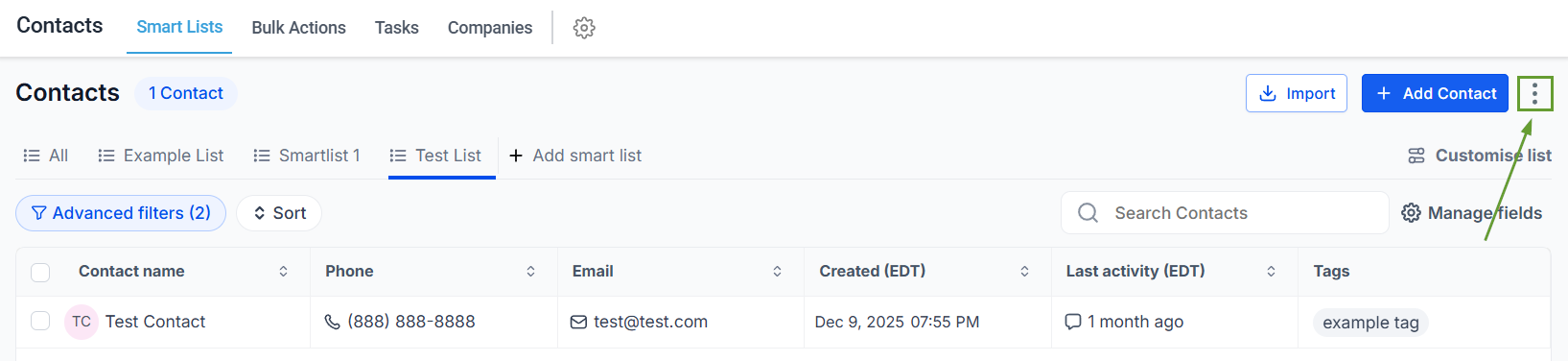
Go to the Smart List Tac in the Contacts section and click the three dots next to the add contact button.
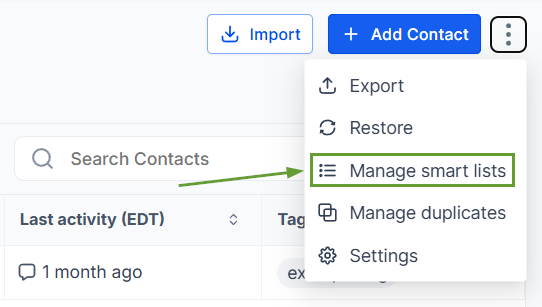
Select “Manage smart list.”
Click the share icon to give access to other users.
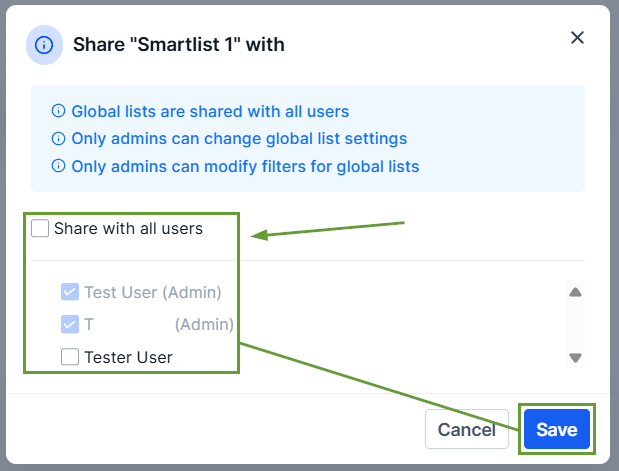
Check the box next to each user you want to view the smart list, then click Save.
These changes will make the management process smoother, simplifying your experience and allowing you to navigate the CRM more intuitively. We hope you enjoy it!
