
"Me" Filter & Primary Contact Notes in Opportunities
We’ve rolled out two changes to the Opportunities section, making personal pipeline views easier to set up and giving you more context at a glance with the addition of a new filter and additional field. Let’s learn how to use them!
⭐️ How To Add The “Me” Filter?
Edit or create a pipeline.
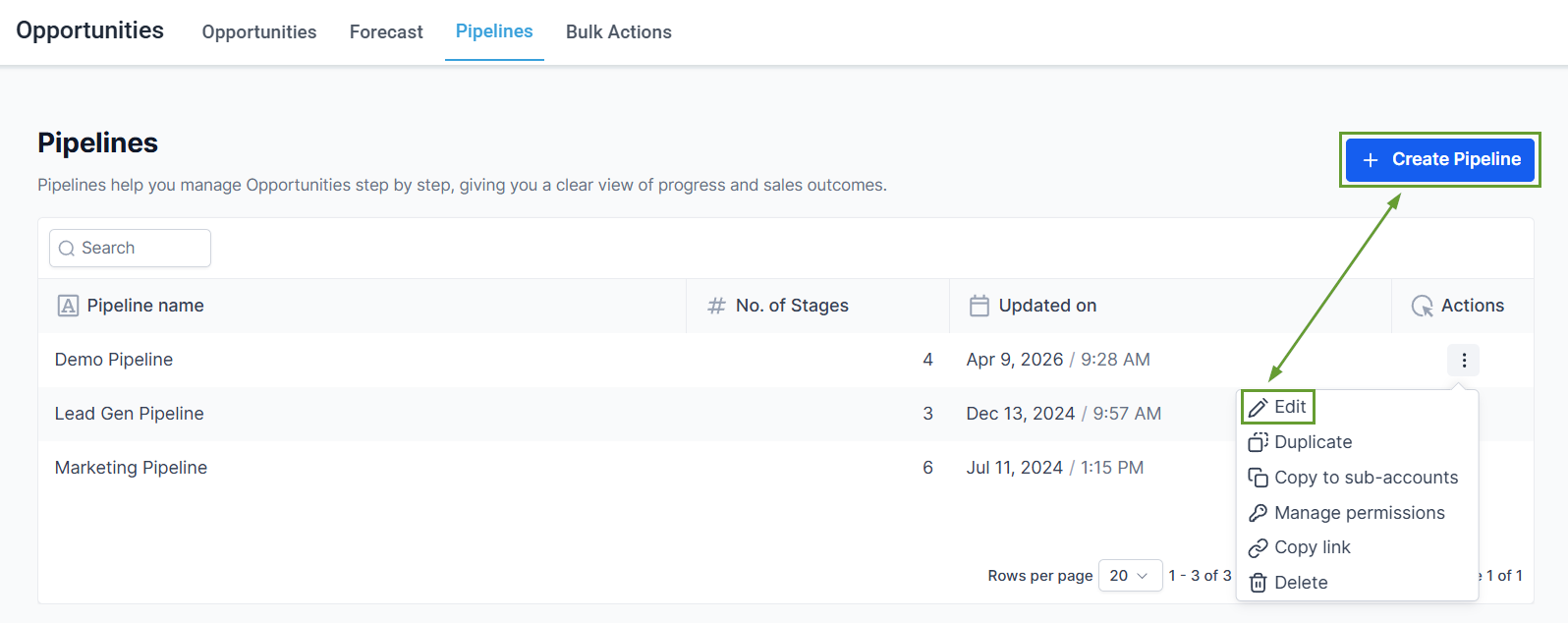
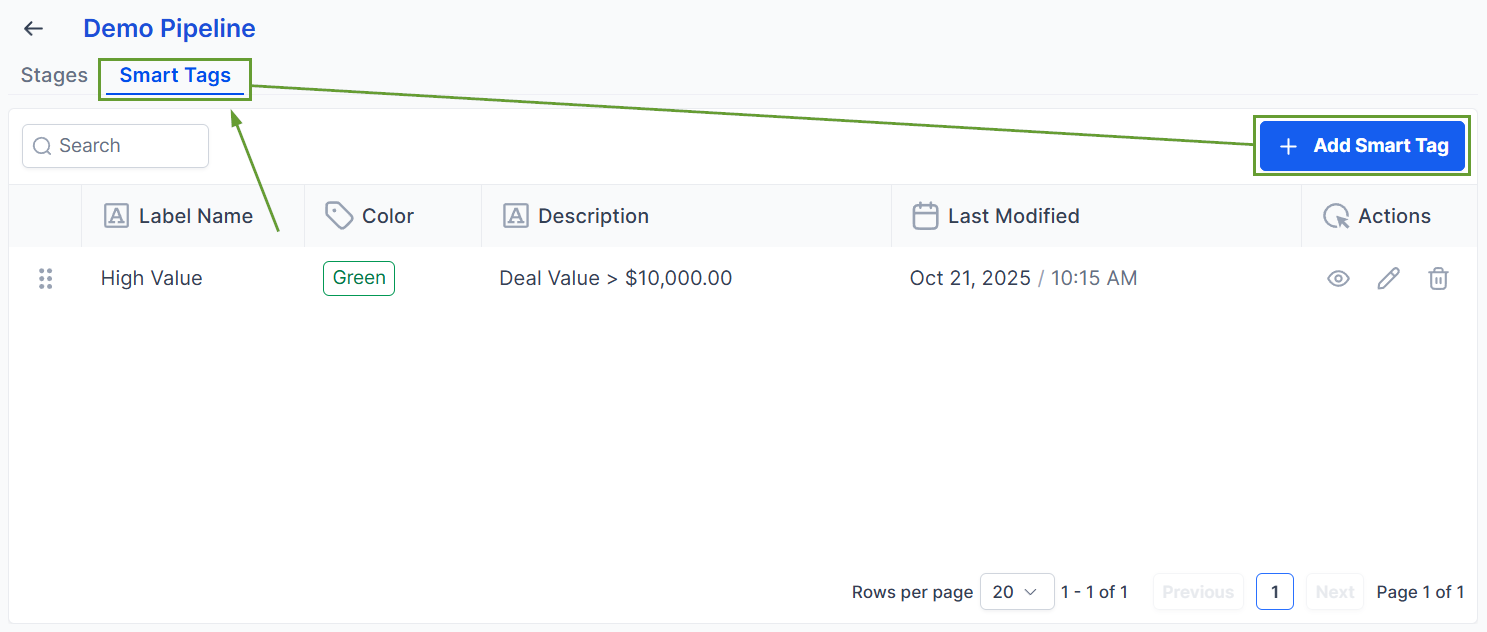
Head to the Smart tags section and click “Add Smart Tag.”
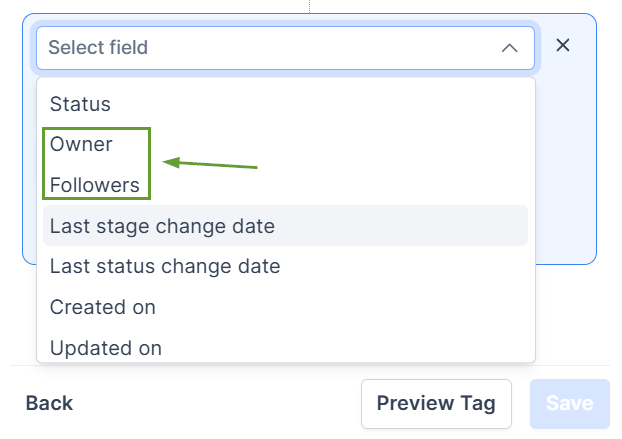
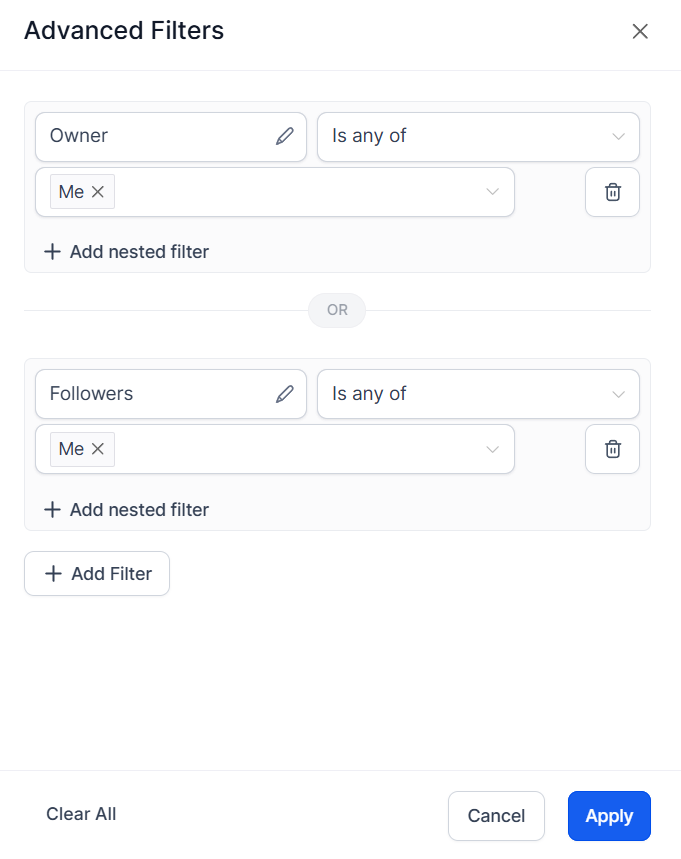
In the Add Rule section, select Owner or Follower.
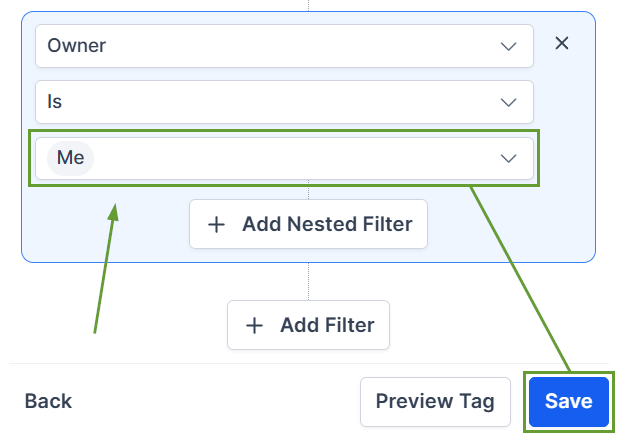
In the value dropdown, select “me,” then click save.
Alternatively, this can be added as a Smart List filter in the Opportunities section.
⭐️ How To View Primary Contact Notes?
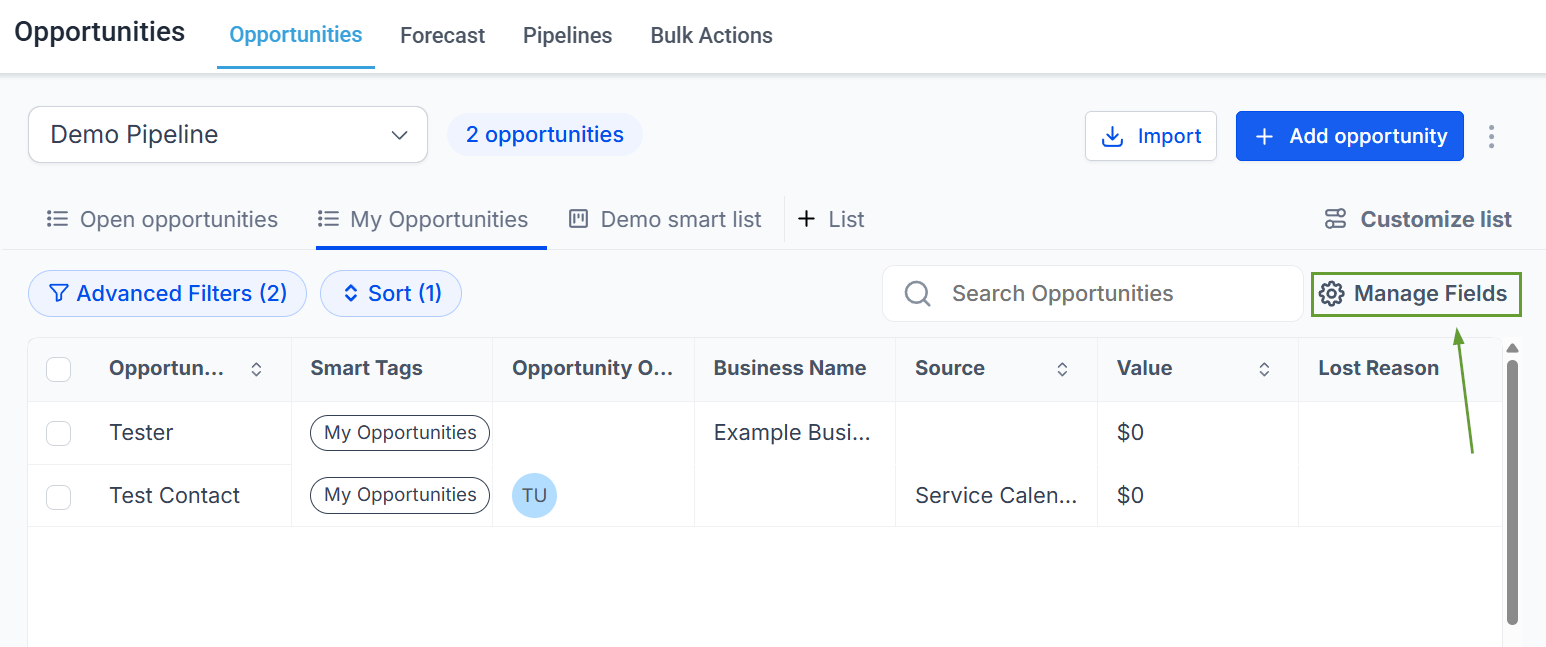
Open Opportunities in List view and click Manage Fields.
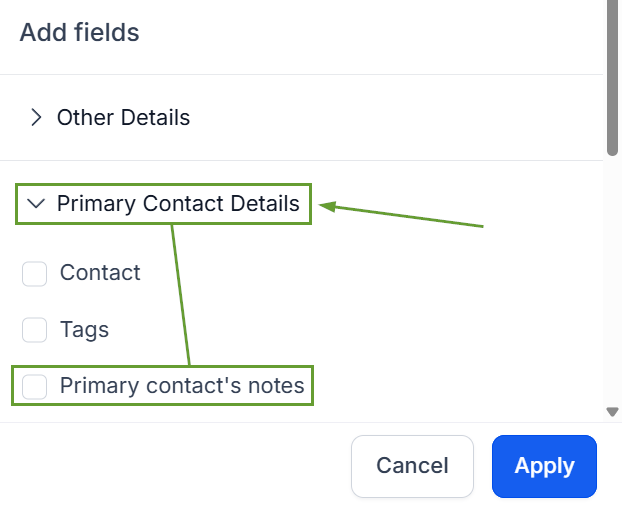
Toggle on Primary Contact Notes.
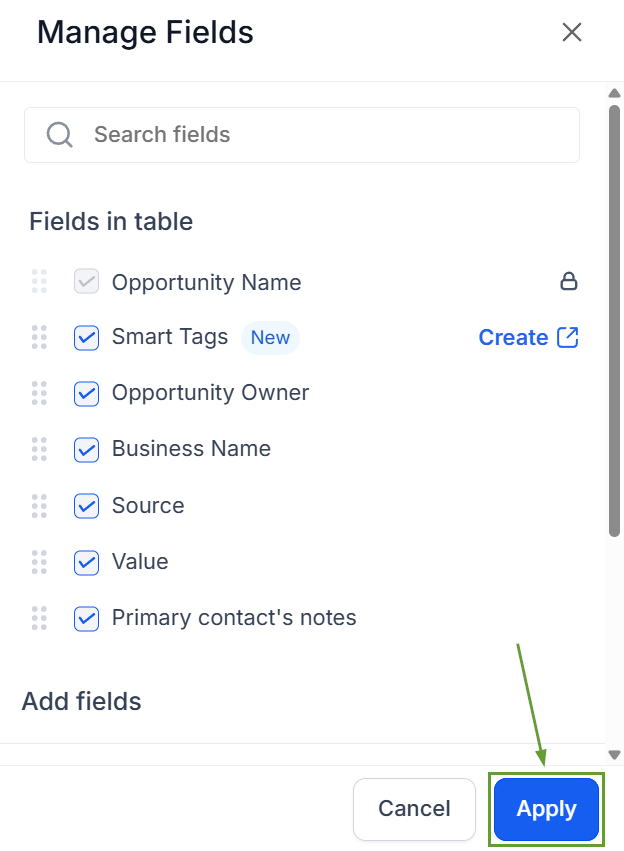
Click Apply to save your changes.
These updates remove the need to build a separate filter view per user, standardize "my opportunities" across the team with a single shared definition, and provide faster context for prep before calls and daily triage. We hope you enjoy it!
